HEAR IT. THEN PICTURE IT.
Find your song’s visual world with an AI Music Video Generator.
Start with your music and one visual direction. The AI Music Video Generator creates an initial sequence after you confirm the cost. Review the scenes, refine the details and export in your project.
What does your song look like?
Open a style to explore the mood. These images illustrate visual directions, not a preview of your finished video.
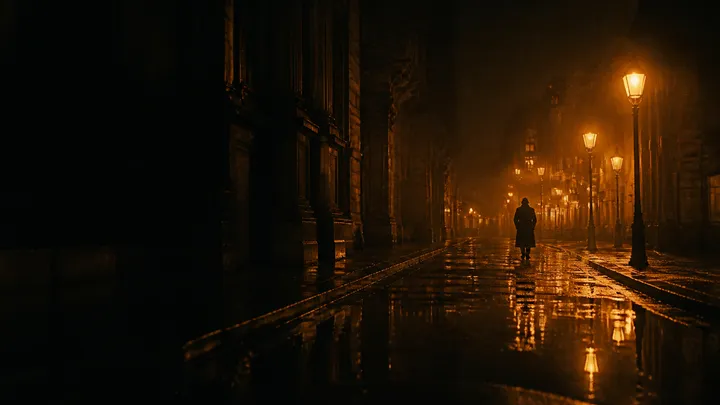 Cinematic
A person, a place and a moment in time. Let lighting and atmosphere carry the story.
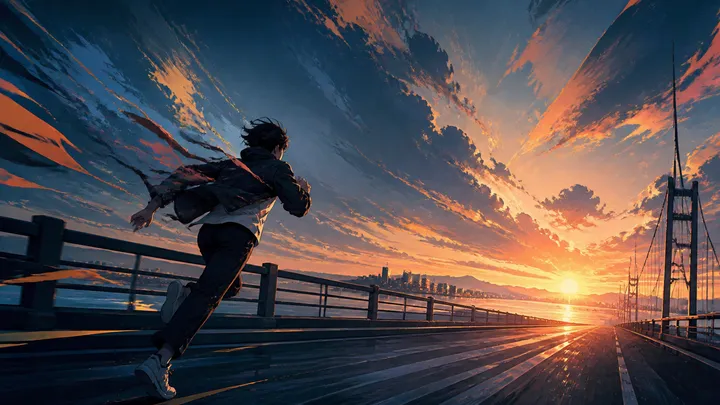 Anime
Anime
Expressive characters, vivid color and an illustrated world built around your music.
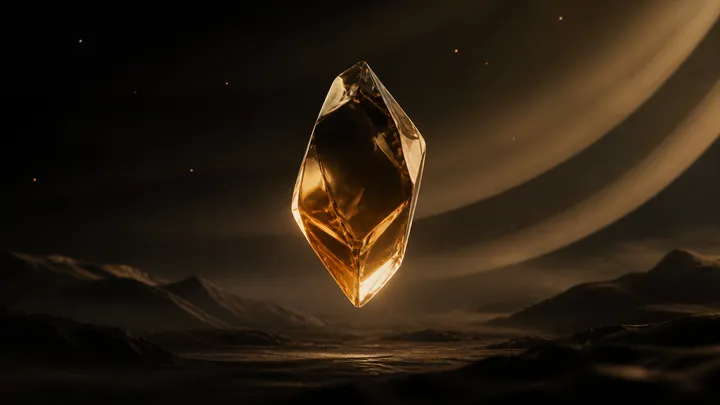 Abstract
Translate a feeling into moving light, shapes and textures. Keep the visual idea focused.
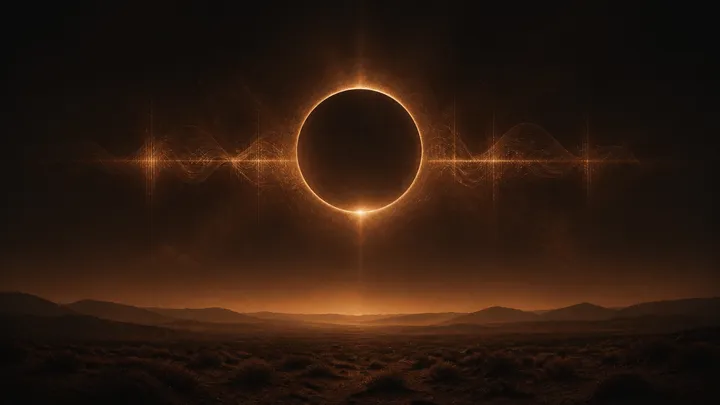 Living cover
A still composition with small movements. Let the music hold the attention.
Write a visual brief for your chosen style
Cinematic
Choose Cinematic when a person, place, or small story belongs at the center. Describe one clear moment: a dancer waiting on an empty platform, or a walk through a city after rain. Add the lighting and mood you want to explore. A specific setting gives you something concrete to judge when you review the scenes.
Anime
Choose Anime for an illustrated direction with expressive movement and color. A setting, a character, and a recurring visual detail can give your idea focus. Consider a runner crossing a quiet neighborhood at sunrise, with warm light returning throughout the sequence. Develop the idea before adding a long list of actions.
Explore anime music video ideasAbstract
Choose Abstract when you want to suggest a feeling through color, texture, and motion. Describe materials, shapes, and the kind of movement you imagine. A restrained palette or one repeating form can help you express a clear visual idea without specifying characters. Listen for a change in energy that you would like the visuals to reflect.
Living cover
Choose Living cover for a composition built around subtle motion. Think about drifting particles, changing light, or a small movement within a still scene. An optional reference image can communicate the look you have in mind. Describe the motion as well as the subject, so you have a clear intention to compare with the result.
Explore the album cover visualizerThree choices. Then press Generate.
Choose your music
Upload an MP3 or WAV, or pick a ready song from your library.
Set the scene
Choose a visual style. Add a short idea or reference image if you have one.
Confirm the scope
Set the length and frame, check the cost, then start generating scenes.
What happens from upload to the first scenes
Make a few decisions about the whole video first. The AI Music Video Generator prepares an initial sequence from those choices, and your project gives you a place to refine the result. You can start without writing a complete shot list.
Choose your music
Upload an MP3 or WAV file, or choose an existing song through Music library. The selected music becomes the soundtrack for the project. Listen to the source before starting: check that it is the version you want and that it contains enough audio for the length you plan to generate. If you are still working on the song, finish that decision first.
Set the scene
In Visual direction, select a style and describe a place, subject, palette, or atmosphere. Add a story idea to your notes if you need a starting point, then edit it to suit your song. Upload an optional JPG, PNG, or WebP in Reference image. In Creative brief, choose the output settings and shot quality under More settings, then check the updated estimate.
Confirm the scope
Choose a 15-second teaser, a 30-second clip, a longer fixed length, or the whole track when supported. Pick 16:9, 9:16, or 1:1 for the composition you have in mind. Sign in and review the cost before starting. Whole-track generation asks for another confirmation after analysis establishes the actual duration, shot count, and credits.
Review the scenes in your project
The AI Music Video Generator prepares the music, builds the storyboard, and starts generating scenes after the required confirmations. Open the resulting project to watch the sequence with your track. Check the beginning, changes in energy, and the ending. You can adjust scene descriptions, regenerate individual shots, and export when you are satisfied with the sequence.
Continue an existing projectA moment, or the whole song?
Start with a short clip
Explore a direction with a 15-second teaser or a 30-second clip. Fewer shots make the first result easier to review.
Choosing a fixed duration
A smaller sequence gives you fewer shots to review while you find the right look. A teaser can introduce a release, while a longer clip gives an idea more room to develop. The source must contain enough audio for the fixed duration you choose. Decide what the viewer should notice first, then use that intention to judge the opening scene.
Give the whole track room
Let the sequence follow the song’s full arc. After analysis, confirm the actual duration and cost before generating scenes.
Whole-track limits and confirmation
Whole-track mode uses the analyzed song duration, currently from 5 seconds to 5 minutes. Plan for enough visual variety to carry the music without changing direction in every shot. The AI Music Video Generator shows the actual scope and cost after analysis, so you can decide whether to continue before scene generation starts.
Compose for where the video will be watched
Choose 16:9 for a wide scene, 9:16 for a vertical composition or 1:1 for a square frame.
Choose a frame for where you will publish
Use a wide frame when the setting matters, a vertical frame when you want to concentrate attention on a subject, or a square frame for a balanced composition. These are creative starting points. Check the destination platform before publishing. YouTube explains how its player adapts to different aspect ratios and recommends leaving padding out of the uploaded video.
Read YouTube’s aspect ratio guidance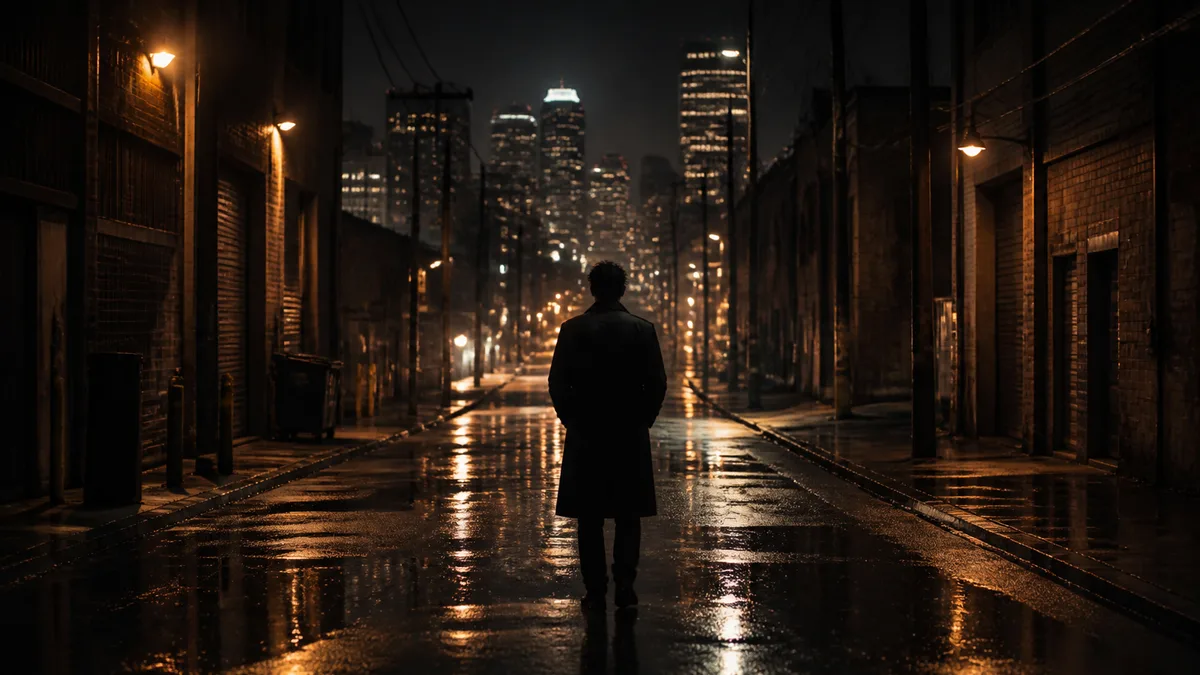
When a scene needs your direction.
Open the project to review and export. If you want to plan individual shots before generating, start in the professional studio.
Open the professional studioWhen to use the professional studio
This AI Music Video Generator suits a song and a broad visual idea: make the main choices here, then refine the generated sequence in your project. The professional studio lets you work through the storyboard before generating scenes. Use it when you already know which moments need particular subjects, compositions, or actions. Both paths leave the final review and export in the project.
Before you press Generate
A few practical details about the AI Music Video Generator, from your source music to the final export.
Does this create a new song?
This page starts from an existing track and uses it as the soundtrack. It does not create a replacement song in the background. Upload your audio or choose a ready song from your music library. If you need new music, use the separate music creation page before starting the video.
Will every movement match the beat exactly?
Rhythm and energy can guide the visual direction, but exact beat matching is not guaranteed. Review the generated sequence with the source music, especially where its energy changes. Refine the individual scenes in your project when the motion or mood needs a different approach.
How much will generation cost?
The form displays an estimate, and you confirm the cost before generation. Rendering reserves credits according to the current server quote. Whole-track mode has another confirmation after analysis reveals the actual duration and cost. Use the current project quote for the generation price; account plans and credit options are listed on the pricing page.
Will I get a finished download immediately?
The AI Music Video Generator creates the scenes for your project. Export is a separate step after you review them. Open the project, check the sequence, make any changes you need, and start the export when it is ready. The style image shown in the form is a visual reference, not your completed video.